Timesheets
Approve time as a manager
The team timesheet grid, statuses, approvals, and changes after review.
Approve a submitted day from the team timesheet. The team grid shows which people are ready for review.
- Open the team timesheetSelect Timesheets. If you also have your own timesheet on the team, switch to Team. Each row is a person and each column is a day. Use Day, Week, or Month to change the range.
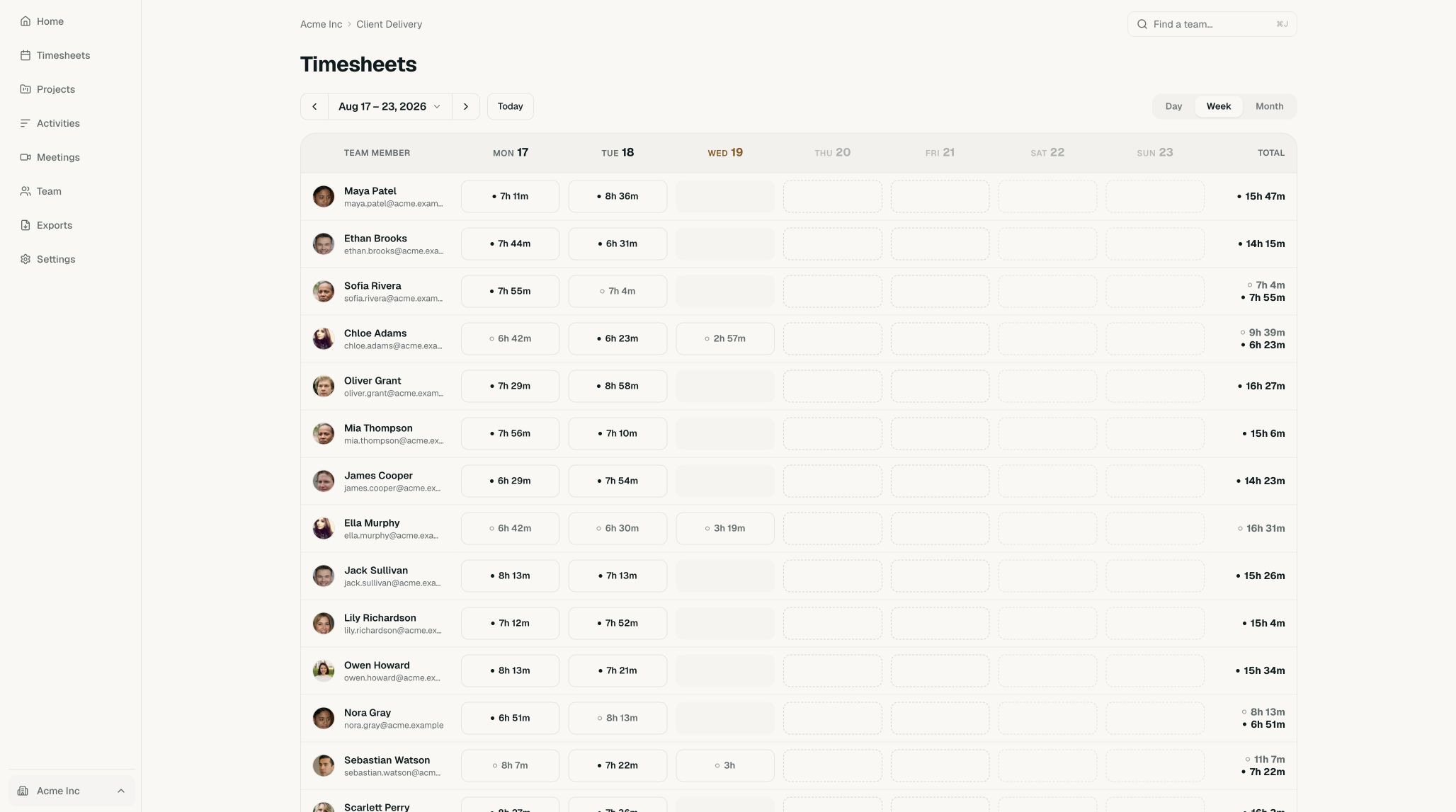
The Acme workspace has 50 members across its teams. - Open a submitted daySelect a day that is ready for review. The banner reads Ready for review, Review required when the day is flagged, or Partially submitted when only some of the day is submitted. Check the person, date, total, and activities before approving.
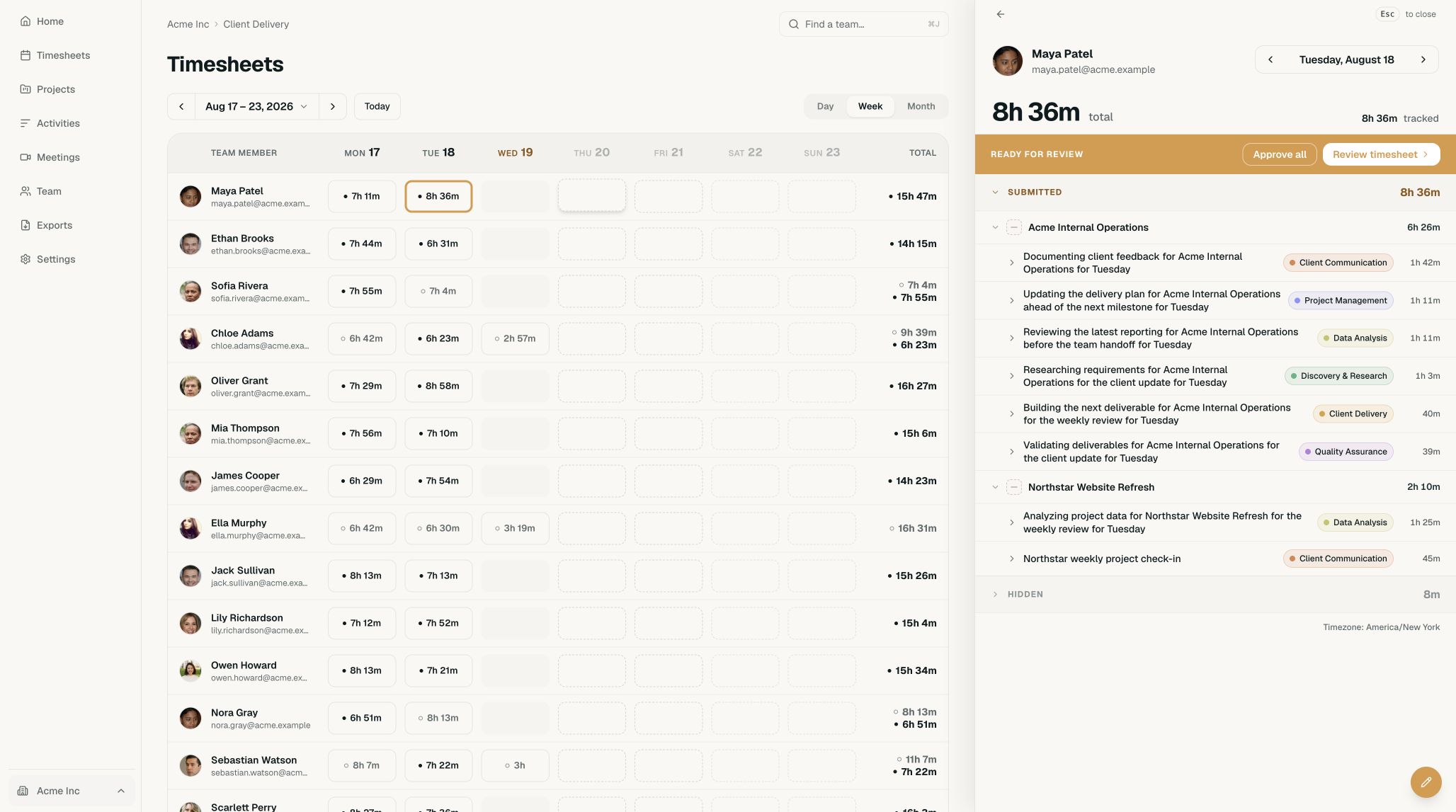
This submitted day contains 8 hours and 36 minutes. - Approve the daySelect Approve all to approve it as submitted, or Review timesheet to step through it card by card. On a partially submitted day, the buttons read Approve submitted and Review submitted. The section then shows who reviewed the day and when.
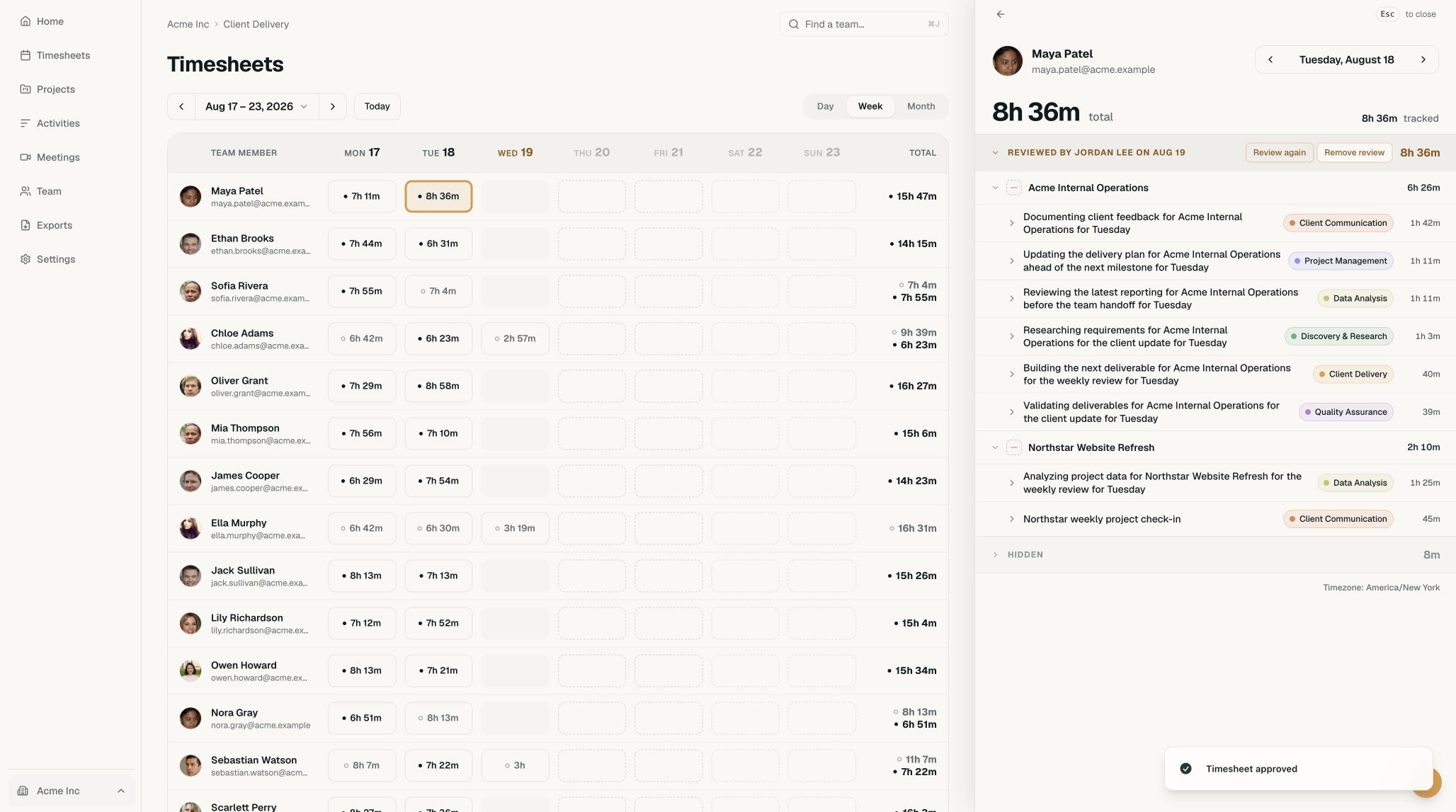
The approved day can be reviewed again or have its approval removed.
Statuses in the grid
When the team’s timesheets are published only after submission or automatically after a delay, each day cell shows a status:
- Reviewed: a manager has approved the day. This appears only when the workspace’s Manager review setting is Required.
- Submitted: the person submitted the day. When manager review is required, this means it is waiting for your review. Otherwise, it is the day’s final state.
- Not submitted: time is recorded, but the person hasn’t submitted it.
- Needs review: the day crossed a review flag and needs a closer look.
A day with nothing recorded shows No activity when you point to it. When timesheets are published right away, or when you filter the grid to one client, cells show hours instead: Less than 2h, 2h or more, and Needs review. Timeglass picks the view from these settings, so there is nothing to toggle.
After you approve
- Review again reopens the day in the card flow.
- Remove review takes your approval back.
- If the person edits the day later, it shows Timesheet updated since review. Select Review changes to see what changed, or Approve all to accept it.
Edit a team member’s activity
If you can manage your team’s activity, open any activity on their timesheet to change it and select Save. The same dialog offers Merge. An activity under Updated since review opens a review of its changes instead. Select Accept changes to approve them.