Meetings
Share a meeting recording
Create a link to a meeting’s report, transcript, and audio.
Create a link when someone outside your workspace needs a meeting’s report, transcript, and audio. Anyone with the link can open it without a Timeglass account.
- Open the meetingIn the Timeglass web app, select Meetings in the main navigation, then choose a meeting that has ended.
- Create the linkSelect the share icon beside the meeting title. Choose a Link expiry of 24 hours, 7 days, 30 days, or Never, then select Create link.
- Copy the linkSelect Copy link, then send it through the channel you normally use with the recipient.
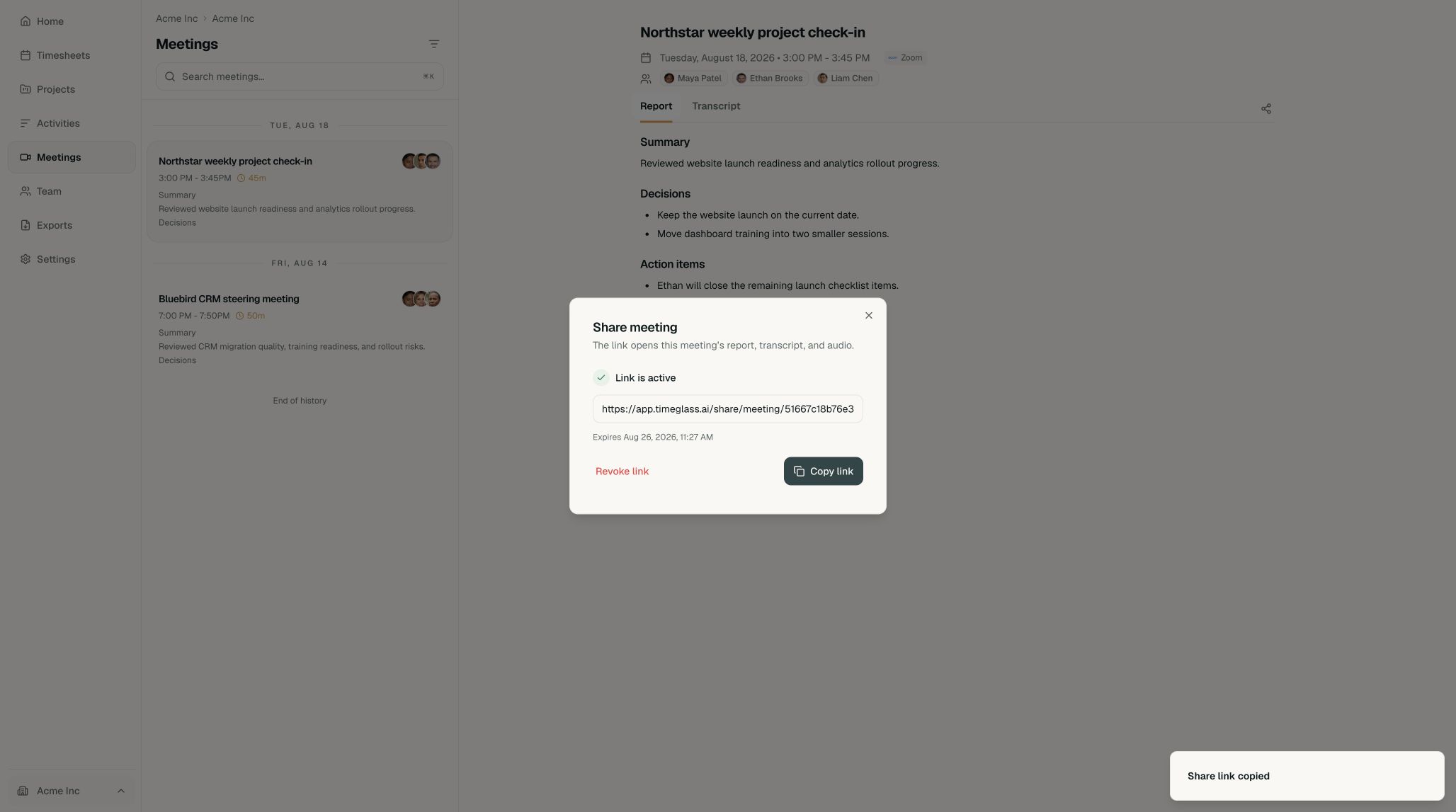
Anyone with the link can open the shared meeting until it expires or is revoked.
What the recipient sees
The link opens a read-only page with the report, the transcript, the audio player, and chapters. Timestamps in the report jump the player to that moment. Dates show in the viewer’s own time zone.
The page leaves out email addresses and profile photos. Recipients can’t name speakers or check off action items.
Stop sharing
Open the share dialog again, select Revoke link, then confirm. The link stops opening the meeting right away, though audio the viewer already started loading can keep playing for up to 10 minutes.
Each meeting has one active link at a time. The person who created it or a workspace admin can revoke it.